Category: Tools & Technology

  • Getting Started with Label Studio for Image Labeling and Text Classification

    Getting Started with Label Studio for Image Labeling and Text Classification

    6–9 minutes

    Label Studio is an open-source data labeling tool that helps you create high-quality datasets for various machine learning tasks. It supports a wide range of data types, including images, text, audio, and video. . This article focuses on setting up Label Studio and using it for two common tasks: image labeling and text classification. We’ll walk through installation, configuration, real-world use cases, and suggest datasets for practice.

    What is Label Studio?

    Label Studio is a versatile tool for data annotation, allowing users to label data for tasks like object detection, image classification, text classification, and more. It provides a web-based interface to create projects, define labeling tasks, and collaborate with annotators. Its flexibility makes it ideal for machine learning practitioners, data scientists, and teams preparing datasets for AI models.

    Key features:

    • Supports multiple data types (images, text, audio, etc.)
    • Customizable labeling interfaces
    • Collaboration tools for teams
    •  Export options for various machine learning frameworks (e.g., JSON, CSV, COCO, etc.)

    Getting Started with Label Studio

    Installation

    The easiest way to get Label Studio up and running is via pip. You can open a terminal and run:

    pip install label-studio

    After installation, launch the Label Studio server:

    label-studio

    This starts a local web server at http://localhost:8080. Open this URL in a web browser to access the Label Studio interface.

    As an alternative you can opt for Docker installation:

    1. Install Docker: If you don’t have Docker installed, follow the instructions on the official Docker website: https://docs.docker.com/get-docker/
    2. Pull and Run Label Studio Docker Image: Open your terminal or command prompt and run the following commands:
    docker pull heartexlabs/label-studio:latest
    docker run -it -p 8080:8080 -v $(pwd)/mydata:/label-studio/data heartexlabs/label-studio:latest
    • docker pull heartexlabs/label-studio:latest: Downloads the latest Label Studio Docker image.
    • -it: Runs the container in interactive mode and allocates a pseudo-TTY.
    • -p 8080:8080: Maps port 8080 of your host machine to port 8080 inside the container, allowing you to access Label Studio in your browser.
    • -v $(pwd)/mydata:/label-studio/data: Mounts a local directory named mydata (or whatever you choose) to /label-studio/data inside the container. This ensures your project data, database, and uploaded files are persisted even if you stop and remove the container.

    3. Access Label Studio: Open your web browser and navigate to http://localhost:8080. You’ll be prompted to create an account.

    Label-studio homepage
    Label Studio – Homepage

    Basic Workflow in Label Studio

    Once logged in, the general workflow involves:

    1. Creating a Project: Click the “Create Project” button.
    2. Data Import: Upload your data (images, text files, CSVs, etc.) or connect to cloud storage.
    3. Labeling Setup: Configure your labeling interface using a visual editor or by writing XML-like configuration. This defines the annotation types (bounding boxes, text choices, etc.) and labels.
    4. Labeling Data: Start annotating your data.
    5. Exporting Annotations: Export your labeled data in various formats (JSON, COCO, Pascal VOC, etc.) for model training.

    Image Labeling: Object Detection with Bounding Boxes

    Real-Case Application: Detecting defects in manufactured products, identifying objects in autonomous driving scenes, or recognizing medical anomalies in X-rays.

    Example: Defect Detection in Circuit Boards

    Let’s imagine you want to train a model to detect defects (e.g., solder bridges, missing components) on circuit boards.

    1. Create a Project:
      • From the Label Studio dashboard, click “Create Project”.
      • Give your project a name (e.g., “Circuit Board Defect Detection”).
    2. Import Data:
      • For practice, you can use a small set of images of circuit boards, some with defects and some without. You can find free image datasets online (see “Suggested Datasets” below).
      • Drag and drop your image files into the “Data Import” area or use the “Upload Files” option.
    3. Labeling Setup (Bounding Box Configuration):
      • Select “Computer Vision” from the left panel, then choose “Object Detection with Bounding Boxes”.
      • You’ll see a pre-filled configuration. Here’s a typical one:
    <View>
      <Image name="image" value="$image"/>
      <RectangleLabels name="label" toName="image">
        <Label value="Solder Bridge" background="red"/>
        <Label value="Missing Component" background="blue"/>
        <Label value="Scratch" background="yellow"/>
      </RectangleLabels>
    </View>
    • <Image name="image" value="$image"/>: Displays the image for annotation. $image is a placeholder that Label Studio replaces with the path to your image.
    • <RectangleLabels name="label" toName="image">: Defines the bounding box annotation tool. name is an internal ID, and toName links it to the image object.
    • <Label value="Solder Bridge" background="red"/>: Defines a specific label (e.g., “Solder Bridge”) with a display color. Add as many labels as you need.

    Click “Save” to apply the configuration.

    Label Studio labeling interface
    Label Studio – Labeling interface & UI Preview

    4. Labeling:

    • Go to the “Data Manager” tab.
    • Click “Label All Tasks” or select individual tasks to start labeling.
    • In the labeling interface:
      • Select the appropriate label (e.g., “Solder Bridge”) from the sidebar.
      • Click and drag your mouse to draw a bounding box around the defect on the image.
      • You can adjust the size and position of the bounding box after drawing.
      • Repeat for all defects in the image.
      • Click “Submit” to save your annotation and move to the next image.

    Text Classification: Sentiment Analysis

    Use Case: Sentiment Analysis for Customer Reviews

    Sentiment analysis involves classifying text (e.g., customer reviews) as positive, negative, or neutral. This is useful for businesses analyzing feedback or building recommendation systems. Label Studio supports text classification tasks with customizable labels.

    Example: Movie Review Sentiment Analysis

    Let’s classify movie reviews as “Positive”, “Negative”, or “Neutral”.

    1. Create a Project:
      • Click “Create Project” on the dashboard.
      • Name it “Movie Review Sentiment”.
    2. Import Data:
      • For practice, you’ll need a CSV or JSON file where each row/object contains a movie review.
      • Example CSV structure (reviews.csv):
    id,review_text
    1,"This movie was absolutely fantastic, a must-see!"
    2,"It was okay, nothing special but not terrible."
    3,"Terrible acting and boring plot. Avoid at all costs."
    • Upload your reviews.csv file. When prompted, select “Treat CSV/TSV as List of tasks” and choose the review_text column to be used for labeling.

    3. Labeling Setup (Text Classification Configuration):

    • Select “Natural Language Processing” from the left panel, then choose “Text Classification”.
    • The configuration will look something like this:
    <View>
      <Text name="review" value="$review_text"/>
      <Choices name="sentiment" toName="review" choice="single" showInline="true">
        <Choice value="Positive"/>
        <Choice value="Negative"/>
        <Choice value="Neutral"/>
      </Choices>
    </View>
    • <Text name="review" value="$review_text"/>: Displays the text from the review_text column for annotation.
    • <Choices name="sentiment" toName="review" choice="single" showInline="true">: Provides the classification options. choice="single" means only one option can be selected.
    • <Choice value="Positive"/>: Defines a sentiment choice.

    Click “Save”.

    4. Labeling:

    • Go to the “Data Manager” tab.
    • Click “Label All Tasks”.
    • Read the movie review displayed.
    • Select the appropriate sentiment (“Positive”, “Negative”, or “Neutral”) from the choices.
    • Click “Submit”.

    Suggestions on Data Sets to Retrieve Online for Free for Data Annotators to Practice

    Practicing with diverse datasets is crucial. Here are some excellent sources for free datasets:

    For Image Labeling:

    • Kaggle: A vast repository of datasets, often including images for various computer vision tasks. Search for “image classification,” “object detection,” or “image segmentation.”
      • Examples: “Dogs vs. Cats,” “Street View House Numbers (SVHN),” “Medical MNIST” (for simple medical image classification).
    • Google’s Open Images Dataset: A massive dataset of images with bounding box annotations, object segmentation masks, and image-level labels. While large, you can often find subsets.
    • COCO (Common Objects in Context) Dataset: Widely used for object detection, segmentation, and captioning. It’s a large dataset, but you can download specific categories.
    • UCI Machine Learning Repository: While not primarily image-focused, it has some smaller image datasets.
    • Roboflow Public Datasets: Roboflow hosts a large collection of public datasets, many of which are already pre-processed and ready for various computer vision tasks. You can often download them in various formats.

    For Text Classification:

    • Kaggle: Again, a great resource. Search for “text classification,” “sentiment analysis,” or “spam detection.”
      • Examples: “IMDB Movie Reviews” (for sentiment analysis), “Amazon Reviews,” “Yelp Reviews,” “SMS Spam Collection Dataset.”
    • Hugging Face Datasets: A growing collection of datasets, especially for NLP tasks. They often provide pre-processed versions of popular datasets.
      • Examples: “AG News” (news topic classification), “20 Newsgroups” (document classification), various sentiment analysis datasets.
    • UCI Machine Learning Repository: Contains several text-based datasets for classification.
    • Stanford Sentiment Treebank (SST): A classic dataset for fine-grained sentiment analysis.
    • Reuters-21578: A collection of news articles categorized by topic.

    Tips for Finding and Using Datasets

    • Start Small: Begin with smaller datasets to get comfortable with Label Studio before tackling massive ones.
    • Understand the Data Format: Pay attention to how the data is structured (e.g., individual image files, CSV with text, JSON). This will inform how you import it into Label Studio.
    • Read Dataset Descriptions: Understand the labels, categories, and potential biases within the dataset.
    • Preprocessing: Sometimes, you might need to do some light preprocessing (e.g., renaming files, organizing into folders) before importing into Label Studio.

    By following this tutorial and practicing with these free datasets, you’ll gain valuable experience in data labeling with Label Studio for both image and text-based machine learning applications.

    For further exploration:

    • Check the Label Studio Documentation for advanced features like machine learning integration.
    • Join the Label Studio community on GitHub or their Slack channel for support.

    Share your experience and progress in the comments below!


    ← Back

    Thank you for your response. ✨

  • The 5 Best Free Annotation Tools in 2025: Streamlining AI Data Labeling for Beginners and Pros

    The 5 Best Free Annotation Tools in 2025: Streamlining AI Data Labeling for Beginners and Pros

    8–12 minutes

    Data annotation is the backbone of AI and machine learning, transforming raw data into structured datasets that power applications like self-driving cars, medical diagnostics, and chatbots. For freelancers, students, and professionals in data annotation, choosing the right tool can make or break your workflow.
    In 2025, free annotation tools have become more powerful, offering robust features for text, image, video, and web annotation. This article highlights the top five free annotation tools, detailing their pros, cons, suitability for beginners or pros, and their best use cases, with a focus on customer collaboration.
    Whether you’re new to annotation or a seasoned pro, these tools can help you excel without breaking the bank.

    Free annotation tools democratize access to AI training, enabling freelancers, small teams, and students to contribute to cutting-edge projects. These tools support diverse tasks—labeling images, tagging text, or annotating videos—while offering collaboration features for seamless teamwork with clients or colleagues.
    With AI demand surging (job postings for AI skills grew 3.5x faster than overall jobs in 2024), free tools are a gateway for beginners to build skills and for pros to scale efficiently. Below, we compare five standout free tools in 2025, based on features, usability, and community feedback from sources like Reddit, X, and industry blogs.

    1. Label Studio

    An open-source, web-based tool for text, image, audio, and video annotation, widely used for machine learning projects.

    Pros:

    • Supports multiple data types (text, images, videos, audio).
    • Customizable workflows for tasks like object detection or sentiment analysis.
    • Strong community support with active GitHub contributions.
    •  Integrates with ML frameworks (e.g., PyTorch, TensorFlow).

    Cons:

    • Steep learning curve for non-technical users.
    • Limited automation in the free version.
    • Requires setup on local servers or cloud, which can be complex.

    Best For: Pros building custom workflows for complex AI projects.

    Why: Label Studio’s flexibility and multi-format support make it ideal for experienced annotators working on diverse datasets (e.g., computer vision, NLP). Its open-source nature allows pros to tailor it to specific needs, but setup complexity can challenge beginners.

    Customer Collaboration: Label Studio’s collaboration features allow multiple users to work on projects via shared workspaces. Teams at companies like Intel use it for internal data labeling, with APIs enabling integration into client pipelines for real-time feedback.

    1. Doccano

    An open-source, web-based tool focused on text annotation for NLP tasks like sentiment analysis and named entity recognition.

    Pros:

    • Beginner-friendly, simple web interface.
    • Supports text classification, sequence labeling, and sequence-to-sequence tasks.
    • Easy setup via PyPI installation.
    • Free with no usage limits.

    Cons:

    • Limited to text annotation; no image or video support.
    • Basic collaboration features; lacks advanced team management.
    • No relationship labeling or nested classifications.

    Best For: Beginners starting with text-based NLP projects.

    Why: Doccano’s intuitive UI and minimal setup make it perfect for newcomers to text annotation. Its simplicity suits small-scale projects, but pros may find it limiting for complex tasks or multi-format datasets.

    Customer Collaboration: Doccano supports multi-user projects, allowing teams to annotate concurrently. Small startups use it for quick dataset creation, sharing annotation guidelines directly in the app for client alignment.

    1. CVAT (Computer Vision Annotation Tool)

    An open-source tool by Intel, designed for image and video annotation, supporting tasks like object detection and segmentation.

    Pros:

    • Robust for computer vision (bounding boxes, polygons, semantic segmentation).
    • Semi-automatic annotation speeds up labeling.
    • Free and deployable via Docker.
    • Strong community support.

    Cons:

    • Complex local setup requires technical expertise.
    • Limited to image and video; no text or audio support.
    • Scalability issues for large datasets without paid cloud options.

    Best For: Pros in computer vision projects.

    Why: CVAT’s advanced annotation types and semi-automatic tools are tailored for experienced annotators working on image or video datasets. Beginners may struggle with its technical setup and lack of broader data support.

    Customer Collaboration: CVAT’s collaborative features allow teams to assign tasks and review annotations. Companies like Intel leverage CVAT for internal vision projects, with clients providing feedback via shared dashboards.

    1. LabelMe

    An open-source tool by MIT CSAIL for image annotation, offering a dataset of annotated images for computer vision tasks.

    Pros:

    • Free and open to external contributions.
    • Supports multiple annotation types (polygons, rectangles, circles, lines).
    • Simple web-based interface.
    • Community-driven dataset sharing.

    Cons:

    • Exports only in JSON format, limiting compatibility.
    • No built-in collaboration features.
    • Outdated UI compared to modern tools.

    Best For: Beginners in image annotation.

    Why: LabelMe’s simplicity and free dataset access make it ideal for newcomers learning image annotation. Pros may find its lack of collaboration and limited export options restrictive for large-scale projects.

    Customer Collaboration: Limited collaboration features mean LabelMe is better for solo work. Small research teams use it for academic projects, sharing annotated datasets via external platforms like Google Drive.

    1. Markup Hero

    A Chrome extension for annotating websites, PDFs, and images, focusing on visual feedback and collaboration.

    Pros:

    • Free plan with basic annotation features (arrows, text, highlights).
    • No installation required for websites; uses browser extension.
    •  Shareable links for easy collaboration.
    • Intuitive for non-technical users.

    Cons:

    • Limited to basic annotations; no advanced ML features.
    • Free plan caps storage and features.
    • Extension-based, so no mobile support.

    Best For: Beginners needing web or PDF annotation for client feedback.

    Why: Markup Hero’s ease of use and shareable links make it perfect for beginners collaborating on web projects or PDFs. Pros may need more robust tools for ML-specific tasks.

    Customer Collaboration: Markup Hero excels in client feedback, allowing users to share annotated screenshots via links without requiring client sign-ups. Agencies like Prontto use it for quick client reviews, streamlining web design feedback.

    Best for Beginners (Text Annotation): Doccano

    Why: Its simple web interface and easy setup (via PyPI) make it accessible for newcomers to NLP tasks like sentiment analysis. The lack of complex features ensures quick onboarding, though it’s limited to text.

    Best for Beginners (Image/Web Annotation): Markup Hero

    Why: Its Chrome extension and shareable links simplify web and PDF annotation for non-technical users. Ideal for freelancers collaborating with clients on web design or content review, but not suited for ML datasets.

    Best for Pros (Computer Vision): CVAT

    Why: Advanced annotation types (e.g., semantic segmentation) and semi-automatic tools cater to experienced annotators in computer vision. Its technical setup is a hurdle, but pros benefit from its precision and community support.

    Best for Pros (Multi-Format ML Projects): Label Studio

    Why: Its versatility across text, image, video, and audio, plus ML framework integrations, make it a go-to for pros handling complex AI projects. Customizable workflows suit large-scale, client-driven tasks.

    Best for Academic Image Annotation: LabelMe

    Why: Its free dataset access and simple interface are great for students or researchers starting image annotation. Limited collaboration makes it less ideal for team projects.

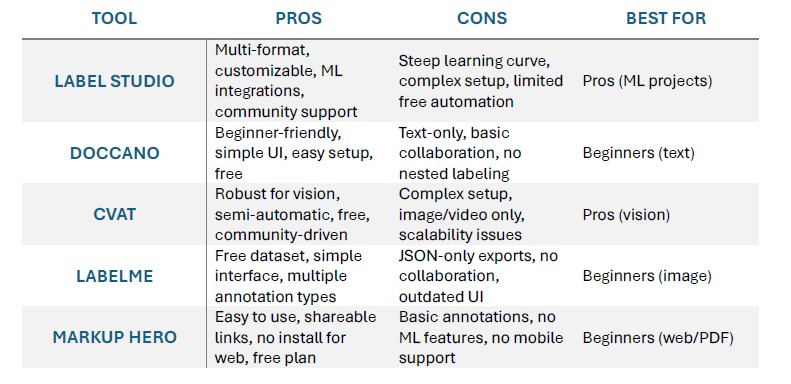
    top  5 free annotation tools in 2025
    Top 5 free annotation tools (2025) – Pros and Cons Summary

    By strategically leveraging the power of free and open-source data annotation tools, freelancers can significantly maximize their earnings. Here are some tips.

    Master Your Tools, Specialize Your Niche

    While general annotation skills are valuable, specialization is key to higher earnings. Each free tool excels in different areas.

    • For Computer Vision (Images/Video): Dive deep into CVAT, Label Studio. Master bounding boxes, polygons, semantic segmentation, and keypoint annotation. Consider specializing in niche areas like:
      • Autonomous Vehicles: Object detection (cars, pedestrians, traffic signs) in complex environments.
      • Medical Imaging: Annotating X-rays, MRIs, or CT scans for disease detection (requires domain knowledge, which commands higher rates).
      • E-commerce: Product categorization and attribute labeling.
    • For Natural Language Processing (Text): Become an expert in Doccano. Focus on:
      • Sentiment Analysis: Identifying emotions in text.
      • Named Entity Recognition (NER): Extracting specific entities like names, locations, or organizations.
      • Text Classification: Categorizing articles, reviews, or emails.
    • For Audio Data: While less represented in purely free tools, some platforms like Label Studio can handle audio. Develop skills in:
      • Transcription and Segmentation: Converting speech to text and marking speaker turns or significant events.
      • Sound Event Detection: Identifying specific sounds in an audio clip.

    By mastering a few tools and focusing on specific, high-demand annotation types, you become a go-to expert, justifying higher rates.

    Build an Impressive Portfolio

    Your portfolio is your resume. Since you’re using free tools, you have the advantage of creating numerous high-quality samples.

    • Showcase Diversity: Include projects using different tools and covering various annotation types (e.g., an image dataset annotated with bounding boxes in CVAT, a text dataset with NER in Doccano).
    • Highlight Accuracy and Speed: For each project, briefly explain the task, the tools used, and emphasize your accuracy and efficiency. If possible, quantify your output (e.g., “Annotated X images with Y% accuracy in Z hours”).
    • Create Your Own Datasets: Download public datasets (e.g., from Kaggle or Hugging Face) and annotate them using your chosen free tools. This demonstrates initiative and skill without relying solely on client projects.
    • Professional Presentation: Use a simple website, a dedicated Google Drive folder, or a GitHub repository to present your work neatly.

    Leverage Freelancing Platforms Strategically

    Many freelancing platforms (Upwork, Fiverr, PeoplePerHour) and specialized data annotation platforms (Appen, Telus Digital, Clickworker, Remotasks, Data Annotation Tech, Toloka AI, OpenTrain AI) have a high demand for data annotators.

    • Optimize Your Profile: Clearly state your expertise, the tools you’re proficient in, and your specialized niches.
    • Competitive Bidding (Initially): When starting, you might need to bid slightly lower to gain initial clients and positive reviews. Once you have a track record, increase your rates.
    • Focus on Quality: Platforms often monitor quality. Delivering highly accurate work consistently will lead to more invitations for projects and better-paying opportunities.
    • Seek Direct Clients: As you build your reputation, actively seek direct clients. This bypasses platform fees, allowing you to keep a larger share of your earnings. LinkedIn, industry forums, and AI/ML communities are great places to network.

    Embrace Continuous Learning

    The AI landscape is constantly evolving, and so are annotation techniques.

    • Stay Updated: Follow AI and ML news, blogs, and research. New data types and annotation challenges will emerge.
    • Explore Advanced Features: Even free tools often have hidden depths. Explore all features and shortcuts to boost your efficiency.
    • Learn Basic AI Concepts: A fundamental understanding of machine learning concepts (e.g., supervised learning, model bias) can help you understand why you’re annotating data in a certain way, leading to more intelligent and accurate work.
    • Consider Coding (Optional, but Beneficial): While not strictly necessary for most annotation roles, learning basic Python or scripting can unlock higher-paying projects, especially those involving automation or custom tool development.

    The best free annotation tools in 2025—Label Studio, Doccano, CVAT, LabelMe, and Markup Hero—cater to diverse needs, from text to computer vision. Beginners should start with Doccano for text or Markup Hero for web/PDF tasks due to their simplicity and collaboration features. Pros should opt for Label Studio or CVAT for their flexibility and ML integrations, ideal for complex AI projects. By leveraging these tools, upskilling in Python or domain expertise, and engaging with communities on X or Reddit, freelancers can maximize earnings and deliver high-quality datasets.

    Start exploring these tools today, and share your experiences below!


    ← Back

    Thank you for your response. ✨